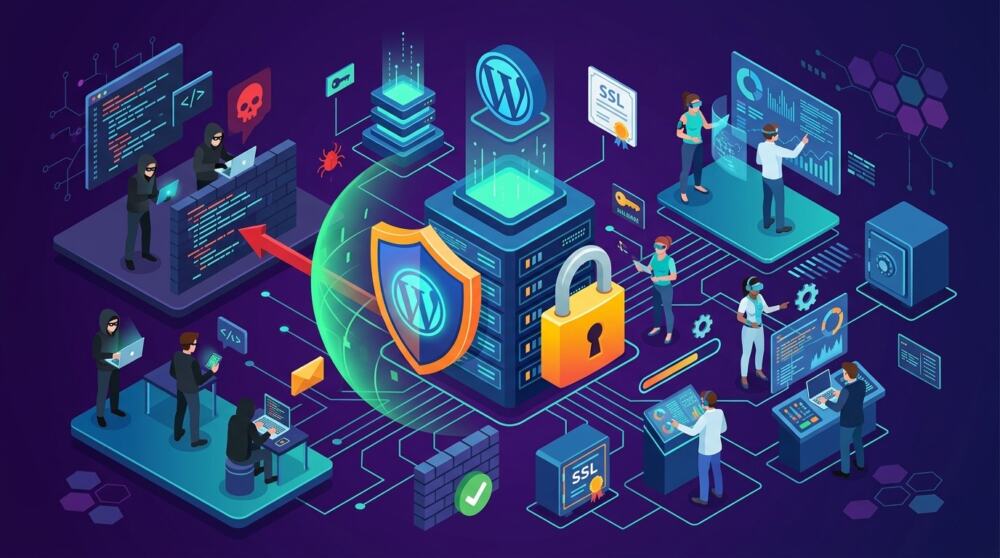
Why WordPress Sites Get Hacked in 2026
Learn why WordPress sites get hacked, the eight most common causes, and the practical steps that reduce the risk of a security incident.

WordPress websites are most often compromised through vulnerable or outdated extensions, stolen passwords, overprivileged accounts, and neglected configurations. In most cases, an attacker does not manually select one business. Automated bots scan the internet and try known techniques against every vulnerable site they find.
Quick answer: why do WordPress sites get hacked?
- WordPress, plugins, or the theme are not updated;
- passwords are weak, reused, or stolen through phishing;
- two-factor authentication is not enabled;
- abandoned, pirated, or untrusted extensions are installed;
- user accounts have more permissions than they need;
- hosting, files, or connected services are misconfigured;
- the site is not monitored, so an incident remains hidden;
- backups exist but cannot be restored.
WordPress is not compromised simply because it is popular. Risk comes from the combined state of its software, configuration, access, hosting, integrations, and maintenance.
Why is WordPress attacked so often?
WordPress is widely used, and its ecosystem contains thousands of themes and plugins. Automation makes this attractive to attackers. A bot can search many domains for the same vulnerable extension without knowing who owns each website.
A small website is not too unimportant to attack. It can be used to send spam, redirect visitors, publish search spam, host phishing pages, distribute malware, or support attacks against other systems.
8 common reasons WordPress websites are compromised
1. Outdated WordPress, plugins, or themes
A vulnerability is a security weakness that may allow unauthorised access or actions. When a developer publishes a corrected version, sites that remain on the old release may still be exposed.
How to reduce the risk: maintain an extension inventory, remove unused software, monitor security alerts, and test updates before applying them to the live website.
2. Reused passwords and stolen accounts
An attacker does not need to “break WordPress” if an administrator password is obtained through another breach, phishing, an infected device, or an exposed browser session. Reusing one password across several services increases the damage.
How to reduce the risk: use long, unique passwords, a reputable password manager, two-factor authentication, and session revocation when an incident is suspected.
3. Plugins or themes from untrusted sources
Nulled extensions are pirated copies of commercial products. They may contain hidden access mechanisms from the moment they are installed. A scanner cannot make an untrusted source safe.
How to reduce the risk: install software only from WordPress.org or the official developer. Keep licences active so security updates and support remain available.
4. Too many administrator accounts
Every administrator account is a possible access path. Agencies, contractors, and former employees may retain permissions they no longer need.
How to reduce the risk: apply least privilege. Use Editor, Author, Shop Manager, or a limited custom role when full administration is unnecessary. Review accounts quarterly.
5. Hosting and file misconfiguration
Overly broad file permissions, shared SFTP accounts, unsupported PHP versions, weak account isolation, or an unprotected hosting panel can increase the impact of an incident. Shared hosting is not automatically unsafe, and a VPS is not automatically secure. Quality of administration matters more than the plan label.
How to reduce the risk: ask the provider about isolation, software maintenance, backups, logs, malware scanning, and incident support.
6. Exposed forms, integrations, and API keys
A modern website connects to email, payments, invoicing, CRM, and automation services. An exposed API key or an unvalidated webhook may provide access to important data or actions.
How to reduce the risk: store secrets in protected configuration, restrict key permissions, rotate credentials, and remove integrations that are no longer used.
7. Missing monitoring and alerts
Some compromises remain hidden for weeks. The website may look normal to its administrator while redirecting only mobile visitors or showing spam only to search engines.
How to reduce the risk: monitor availability, file changes, logins, users, known vulnerabilities, and Google Search Console. Send alerts to an address that is checked every day.
8. Untested backups and no recovery plan
A backup does not prevent an attack, but it can reduce data loss and downtime. A backup stored only in the same hosting account, created too infrequently, or never tested may fail when it is needed.
How to reduce the risk: keep external copies, define how much data the business can lose, and test restoration. For online stores, backup frequency should reflect order volume.
Vulnerable does not automatically mean hacked
A vulnerability means a potential attack path exists. A compromised website means unauthorised access or modification has already occurred. A vulnerability scanner can identify risky versions, but it cannot by itself confirm every form of malware, stolen account, or database change.
What do attackers want from a WordPress site?
- Server resources: sending spam, generating automated traffic, or hosting files.
- Visitors: redirects, advertisements, phishing, and harmful downloads.
- Search visibility: hidden spam pages and links.
- Data: user accounts, personal information, orders, and configuration.
- Persistent access: accounts, files, or scheduled tasks that allow the attacker to return after incomplete cleanup.
How can you check whether the site is already compromised?
Look for unknown redirects, spam pages in Google, new administrator accounts, modified files, rejected email, unusual resource use, and Search Console warnings. Our guide to signs that a WordPress site was hacked explains each check and the response steps.
If you suspect an incident, document the symptoms, contact the hosting provider, restrict access if visitors are at risk, and change credentials from a safe device. Do not delete files at random before the investigation.
How to reduce WordPress security risk step by step
- Inventory the website. Record the theme, plugins, users, and connected services.
- Remove what is not used. A disabled plugin that remains on the server can still increase the attack surface.
- Update with a process. Create a backup, test on staging, and verify critical functions after updating.
- Protect access. Use unique passwords, 2FA, and roles with minimum permissions.
- Configure protection. Choose a firewall and monitoring approach appropriate for the hosting and traffic.
- Separate backups. Keep at least one copy outside the hosting account.
- Test restoration. Confirm that files, the database, and commercial functions can be recovered.
- Prepare for incidents. Define who decides, who responds, and how customers and suppliers are informed.
Resources for a complete protection system
This article explains why attacks happen. Use our complete WordPress security and maintenance guide as the pillar resource for the full process.
- compare the best WordPress security plugins for 2026;
- prepare a WordPress disaster recovery plan;
- follow a regular WordPress maintenance process;
- review our WordPress security service.
Frequently asked questions
Is WordPress insecure?
Not by definition. Risk depends on extensions, configuration, access, hosting, and maintenance. WordPress core, the theme, plugins, and connected services should be treated as one system.
Is hiding the login page enough?
No. Changing the address may reduce some automated attempts, but it does not repair vulnerabilities or protect an account with a stolen password. Use 2FA, login rate limiting, and monitoring.
Does a firewall stop every attack?
No. A firewall can reduce malicious traffic and block certain exploits, but it does not protect against every stolen account, dangerous extension, or administrator mistake.
How quickly should a security update be installed?
The more severe and easily exploited the vulnerability, the faster it should be assessed. Create a backup, test critical functions, and apply the stable release without unnecessary delay.
Would you like to understand your website’s current risks?
Start with a vulnerability scan, then decide which updates, configuration changes, and monitoring controls are required.
Scan your website for free or request a WordPress security assessment.